Annotate
Label images. Review every detail.
Select objects with a click or annotate a whole dataset with AI. Review the results, save a version, and export your training data.
Explore custom modelsSelect an object with a click. Review the mask.
Magic Select
Select an object and let the AI generate a precise mask for you to review and refine, without tracing every contour by hand.
Magic Annotate
Choose the labels to find in an image or dataset. Check the estimated cost, decide whether to keep existing annotations, and review the AI results.
Manual tools
Draw bounding boxes and polygons. Move and zoom the image to refine the details that need a closer look.
COCO export
Export images, bounding boxes, and polygons in COCO format from the current dataset or an immutable version, ready for your training workflow.
Dataset versions
Capture an immutable version of your images and annotations. Later edits to the live dataset do not change that version.
Models
Private betaFrom annotated images to your model.
Train a YOLO object detection model on the images your team has reviewed. Follow the results and download the model for your own workflow.
Built for agents
Connect your agents through MCP.
Use MCP to connect AI agents to your workspace. They can manage datasets, edit annotations, review OCR text, and download exports with your permissions. Revoke access at any time from your account.
Connect your AI agentAnnotation examples
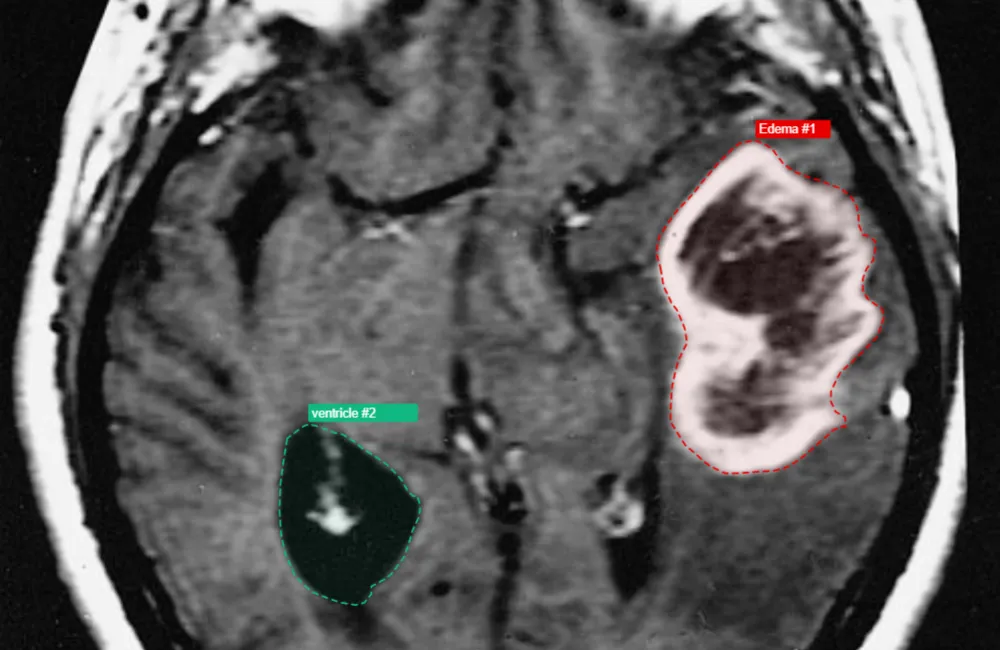
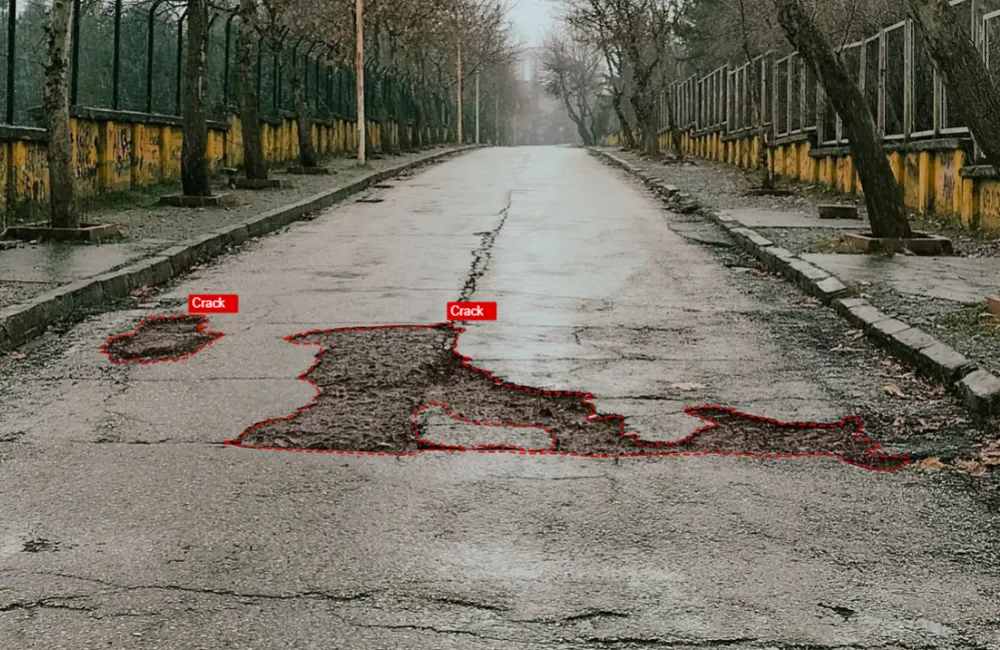
See segmentation examples from medical imaging, infrastructure, and manufacturing.

Working with documents too?
Use document datasets to extract and review text from PDFs and scans, then export it for your AI tools. Audio and video datasets are coming soon.
Explore DocumentsFrequently asked questions
What is the difference between Magic Select and Magic Annotate?
Magic Select lets you click an object to generate its outline. Magic Annotate finds the labels you choose in an image or across a dataset. You can review and refine the results from both tools.
Can I create or correct annotations manually?
Yes. You can draw and edit bounding boxes and polygons, including annotations generated by AI. Zoom into the image to check the details before marking it as reviewed.
How can I export my dataset?
Export images, bounding boxes, and polygons in COCO format from the current dataset or a saved version. Versions preserve your images and annotations even when you later edit the live dataset.
Do AI tools consume credits?
Magic Select, Magic Annotate, and exports consume credits. The platform shows the cost or estimate before you start. Pricing explains the credits included in each plan and how to add more.
Can I train a model with my annotated images?
Object detection training is available in private beta and requires separate approval for your organization, regardless of your plan. Segmentation and classification training are coming soon.
Prepare your next dataset.
Create a free account, upload your images, and start annotating.